Update the firmware on your Samsung soundbar

Occasionally, Samsung provides important firmware updates for your soundbar. Updating the firmware on your soundbar gives you all the benefits of the latest improvements. If an update is available from Samsung, and your soundbar is connected to the Internet, it will be able to update automatically. You can also download the update directly from Samsung to a USB device, and then upload it to your soundbar. Or, update your soundbar using the SmartThings app.
Note: Not all Samsung soundbars support Wi-Fi connection. If your soundbar does not support Wi-Fi connection, you will not be able to update the firmware automatically or through the SmartThings app.
Note: Use this method if you are unable to update the software via USB.
Step 1. Make sure your soundbar is connected to the Wi-Fi network using SmartThings.
Step 2. Unplug the soundbar, the subwoofer, and the rear speakers for 30 seconds, and then plug them back in.
Step 3. Open the SmartThings app on your phone and select the soundbar to access the control menu.
Step 4. Tap the 3 vertical dots in the top right corner of the screen.
Step 5. Navigate to Information, then Firmware Update, and select Update Now.
Step 1. To update the soundbar’s firmware, visit the Samsung Download Center . You can either select your product type and then search for your soundbar, or select ENTER MODEL NUMBER to access the support page for your specific soundbar model.
Step 2. On the Support page, locate the firmware file for your soundbar under DOWNLOADS. If you find multiple firmware versions, install the newest version available. Select DOWNLOAD next to the firmware version to download the compressed file.
Step 3. When the file has finished downloading, locate it then unzip the file.
Step 4. Navigate through the folders until you access the files required for the update. Copy or move the files to the USB drive (make sure the capacity is large enough for the files). When the files are copied over to the USB, make sure they are not placed in a folder. Placing them in a folder will make it harder on the soundbar to find the files.
Step 5. Connect the USB with the update files to the USB port of the soundbar while it is powered off.
Step 6. Turn on your soundbar using the remote or press Power on the soundbar. When it's powered on, switch to the USB source using the source button.
Step 7. The update will start and your soundbar's display will flash UPDATE during the process.
Step 8. When the update finishes, the soundbar will power off. Press Play/Pause on the remote for 5 seconds. INIT will show on the display and then it will power off. This means the update is now complete
Step 1. Press and hold Sound Control (gear icon) for 6 seconds until the unit is off.
Step 2. The firmware version will show on the soundbar display, pay attention to the numbers following the letter B.
You can set your soundbar to update automatically through the Internet when the soundbar is turned off. In order to do so, you will need to keep your soundbar connected to a Wi-Fi network. Adding your soundbar to the SmartThings app on your mobile device will let you establish a Wi-Fi connection. Our SmartThings app instructions will help you connect your soundbar through Wi-Fi. For more information, please check “A good way to connect your soundbar (Wi-Fi)” from our Samsung soundbar set up guide.
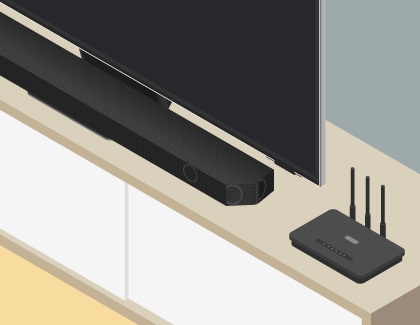
Note: The soundbar’s Wi-Fi connection will be interrupted if the soundbar’s power cord is disconnected, or if the power is cut off. You will need to connect the soundbar to your Wi-Fi network again once the power comes back on, or when the power cord is reconnected.


Service Centers


Locate the nearest Samsung service center to have your product checked.
Thank you for your feedback!
Please answer all questions.
Contact Info
WhatsApp
![WhatsApp]()
![WhatsApp]()


Monday to Sunday
8:00 a.m. a 12:00 a.m.
LiveChat
![LiveChat]()
![LiveChat]()


Monday to Sunday
8:00 a.m. a 12:00 a.m.
Online
Call
Costa Rica: 00-800-1-726-7864
Ecuador: 1-800-72-6786
El Salvador: 800-0726-7864
Guatemala: 1-800-299-0033
Call
Honduras: 800-2791-9111
Jamaica: 1-800-726-7864
Nicaragua: 001-800-5077267
Panama: 800-0101
Call
Puerto Rico: 1-800-682-3180
Trinidad and Tobago: 1-800-726-7864
Venezuela: 0-800-100-5303
Dominican Republic: 1-800-751-2676