How to register and use Samsung Art Store coupons on The Frame TV
Important Note: The information on this page is for Hong Kong products only. Models, sequences or settings will vary depending on location and/or where the product had been purchased. To be redirected to your local support page please click here.
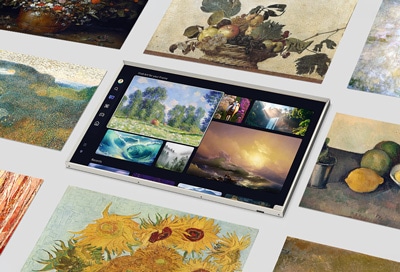
Art Mode lets you transform your Samsung The Frame TV into a beautiful work of art using digital versions of paintings, photographs, and other works in the Samsung Art Store. If you have a Samsung Art Store membership, you can redeem and apply Art Store coupons. The instructions in this guide will walk you through managing your Art Store coupons. For information about subscribing to the Art Store, please see our subscription guide instead.
To use Art Store coupons, you must first sign up for an Art Store membership and register your payment card. When you finish using the Art Store coupon, the amount corresponding to the selected membership will be automatically charged to the registered card.
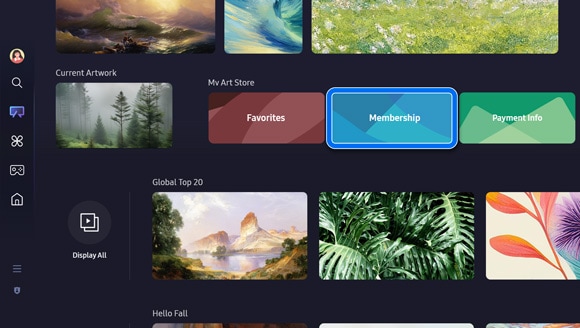
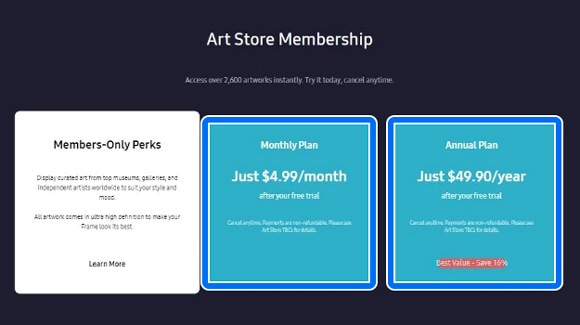
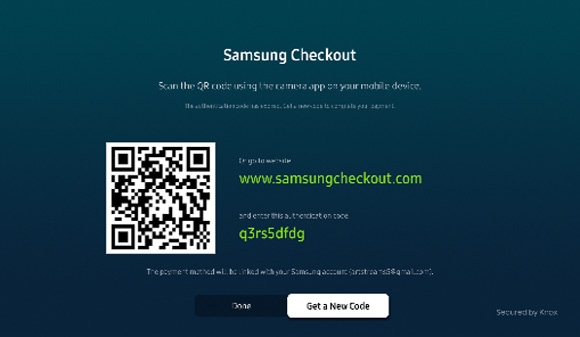
Note: If you choose to use the website, you will need to enter an authorization code.
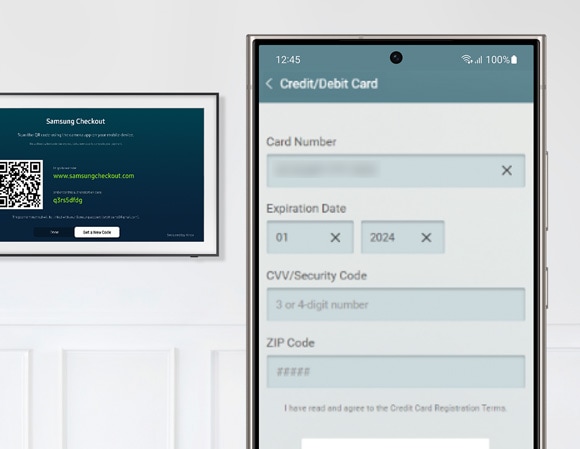
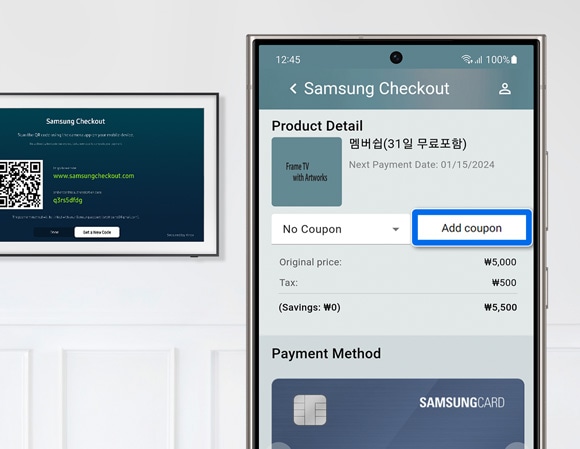
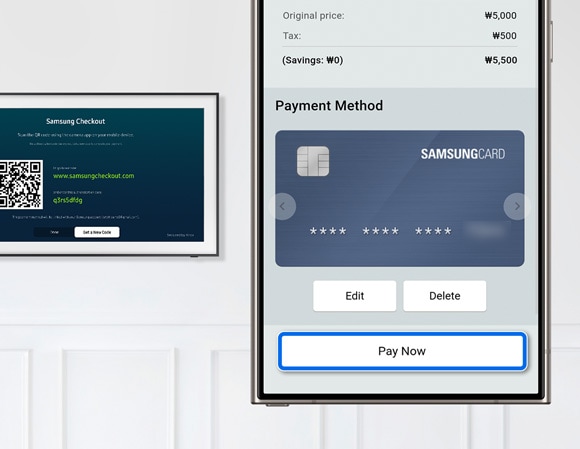
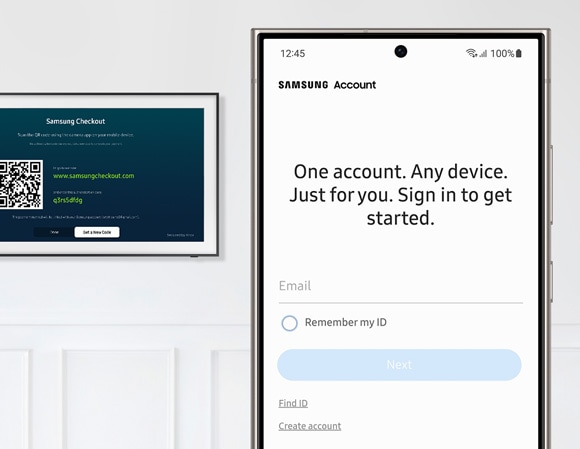
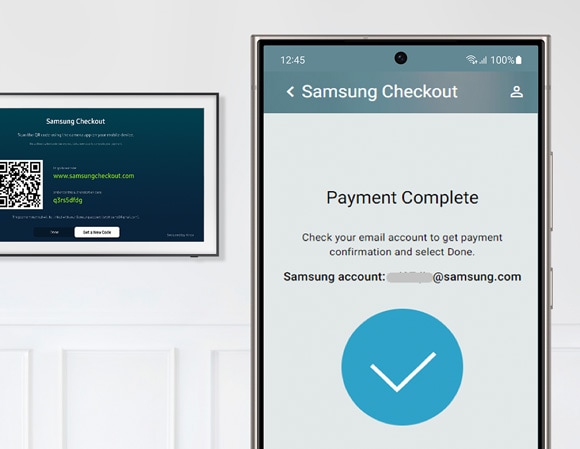
Notes:
- If you have forgotten your Samsung Account ID or password, you can reset it using the Samsung Account website.
- If your payment fails or a duplicate payment occurs, please refer to the “Troubleshooting” section below.
- An annual subscription fee will be applied during the promotional period to extend the Art Store subscription before its termination. Customers have the flexibility to cancel the subscription at any time.
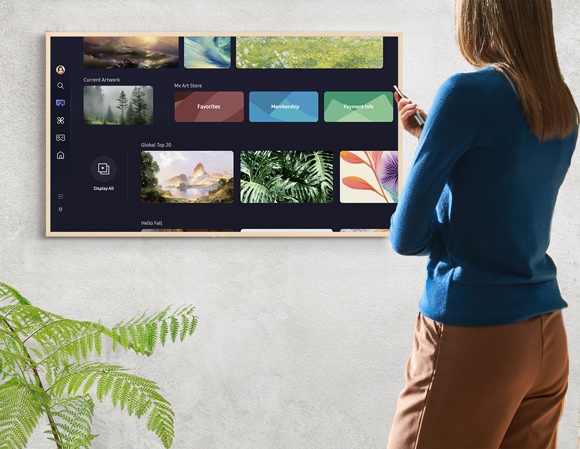
You can refer to the following troubleshooting steps if you’re having problems with the Art Store or your Samsung Account.
Membership issues
The Art Store does not work. When trying to register, I receive a message that says “You have already registered”.
- Log out of your Samsung Account and then unplug your TV for 2 minutes.
- Plug in your TV, and then log into your Samsung Account.
- Then, check if the Art Store is working. If you continue to experience issues, please contact frame.cs@samsung.com.
I would like to refund my purchase.
- Please send the logged-in Samsung Account ID, the reason for the membership refund, and the purchase receipt to frame.cs@samsung.com.
Payment history
Where can I check my payment history on a 2017-2023 TV model?
- Navigate to your Samsung Account by opening Settings, then selecting General, then selecting System Manager, and then selecting Samsung Account.
- Sign into your Samsung Account.
- Select My Account, and then select Payment Info.
- Next, select the following option depending on your TV model:
- For 2017 - 2018 models, select Purchase History.
- For 2019 - 2023 models, select Subscriptions.
Where can I check my payment history on a 2024 TV model?
- Select your Samsung Account on the left side of the screen, then select Edit (the pencil icon), and then select My Account.
- Select Purchase History.
Where can I check my payment history on the Samsung website?
- Navigate to Samsung Checkout, and then sign into your Samsung Account.
- Select the Subscriptions tab in the Purchase History menu.
Payment errors
My payment is not working.
- Please send the logged-in Samsung Account ID, detailed symptoms, error screens, and error messages to checkout.cs@samsung.com.
I was charged twice.
- Please send the logged-in Samsung Account ID and purchase receipt to checkout.cs@samsung.com.
Credit card issues
I failed to register my credit card.
- Please send the logged-in Samsung Account ID, detailed symptoms, error screens, and error messages to checkout.cs@samsung.com.
How can I change the credit card for my existing subscription?
- Navigate to your Samsung Account by opening Settings, then selecting General, then selecting System Manager, and then selecting Samsung Account.
- Sign into your Samsung Account.
- Select My Account, and then select Payment Info.
- Select Subscriptions, and then select the subscription you’d like to change. Change the credit card information as desired.
- Alternatively, navigate to Samsung Checkout, and then sign into your Samsung Account.
- Select the Subscriptions tab in the Purchase History menu.
- Select the subscription you’d like to change, and then select Change payment card.
Account issues
How can I recover my Samsung Account ID or password?
- If you have forgotten your Samsung Account ID or password, you can reset it using the Samsung Account website.
I’d like to change my Samsung Account password or delete my Samsung Account.
- If you’d like to change your Samsung Account password, you can reset it using the Samsung Account website. You can also delete your account if desired.
Note: Image simulated for illustrative purposes. Details may vary depending on region and device. For enquiry, please contact us.
If the above information does not match what your product is showing, you may check the User Manual for your product. If you are unable to solve the problem, please contact us for further assistance.
Thank you for your feedback!
Please answer all questions.
RC01_Static Content : This text is only displayed on the editor page