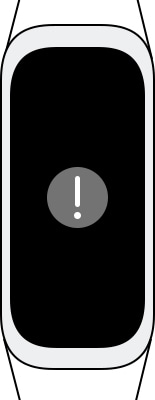
What to do if exclamation mark appears on my Galaxy Fit screen?
Important Note: The information on this page is for Hong Kong products only. Models, sequences or settings will vary depending on location and/or where the product had been purchased. To be redirected to your local support page please click here.
Full-color AMOLED display gives you real-time information about your health at a glance. Yet there is a case the display shows an exclamation mark and does not go away. Check out what is Galaxy Fit '!', and how to update and restart unresponsive device.
Before you try out below recommendations as to your solution, be sure to check if your device's software and related apps are updated with latest version. Please check how to update your mobile device's software in following order.
Step 1. Go to Settings > Software update.
Step 2. Tap on Download and install.
Step 3. Follow the on-screen instructions.
What is Galaxy Fit exclamation mark?
Display shows '!' (exclamation mark) when software update is failed with Bluetooth connection between Galaxy Fit and mobile phone.
How to update my Galaxy Fit device
The Galaxy Fit can be directly updated to the latest software by the firmware over-the-air (FOTA) service via the Galaxy Wearable app. You may retry to update software on connected mobile phone via Galaxy Wearable application.
Step 1. Open Galaxy Wearable app and reconnect mobile phone through this app.
Step 2. To download and install band software on Galaxy Wearable app, tap Home > Update band software > Download and install.
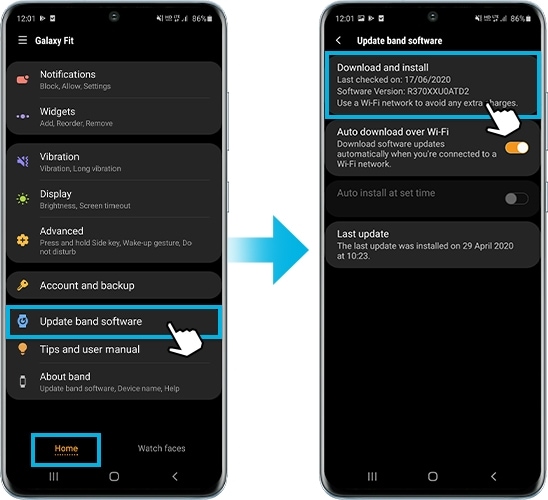
Step 3. Follow the on-screen instructions.
Step 4. The Galaxy Fit will be automatically restarted to complete software update.
Note:
- Keep your phone close to the band during band update to avoid losing your connection to the phone.
- Device screenshots and menu may vary depending on the wireless service provider, device model and software version.
If the above information does not match what your product is showing, you may check the User Manual for your product. If you are unable to solve the problem, please contact us for further assistance.
Thank you for your feedback!
Please answer all questions.
RC01_Static Content : This text is only displayed on the editor page