What is & How do I Use Live Message on Note8?
Important Note: The information on this page is for Hong Kong products only. Models, sequences or settings will vary depending on location and/or where the product had been purchased. To be redirected to your local support page please click here.
• Allows users to create and share an animated handwriting GIF image that contains their own handwriting and self-made Emoji.
Instead of a text message, you can create and send a unique message by recording your actions while handwriting or drawing a live message and saving it as an animated file.
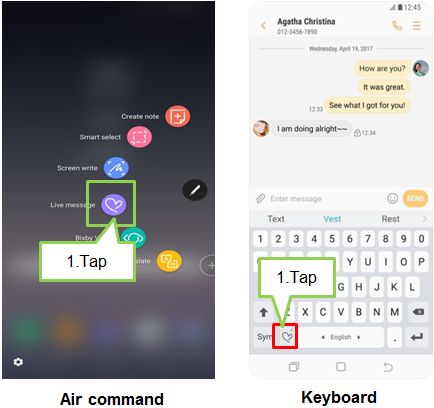
1. When you want to send an animated message while composing a message, open the Air command panel and tap Live message.
Alternatively, tap  icon on the Samsung keyboard. The live message window will appear.
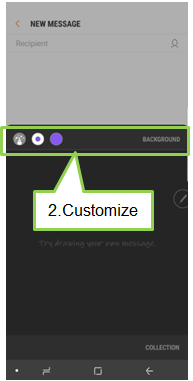
2. Customize pen settings and background image
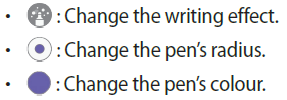
• BACKGROUND : Change the background image. You can also select an image from Gallery.
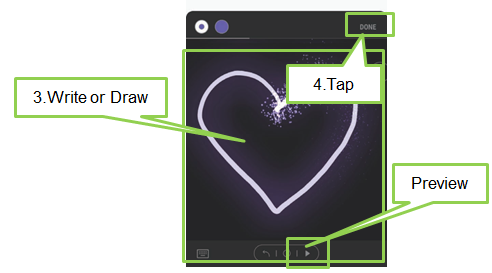
3. Write or draw on the live message window
Note : When you reach the maximum capacity that can be saved as a live message, you cannot write or draw more strokes.
4. When you are finished, tap DONE and send the message.
The live message will be saved in Gallery as an animated GIF file and it will be attached to the current message.
To create a GIF after writing a Live message, it takes some time to convert a message to a GIF file; depending on the number of strokes, it may take a minimum of three seconds up to a maximum of 15 seconds.
You can also share live messages using other sharing methods.
• Select a live message in Gallery and tap Share
• On other screens rather than the message composition screen, open the Air command, tap Live message, create a live message, and tap SHARE
※ IM lists supporting Live Message may differ by location.
Major IMs supporting the GIF Animation feature: WhatsApp, Facebook Messenger, WeChat, QQ Mobile, Kakao Talk, Line, etc.
(Discussion is underway to add more IMs.)
Screen Images are for reference only.
If the above information does not match what your product is showing, you may check the User Manual for your product. If you are unable to solve the problem, please contact us for further assistance.
Thank you for your feedback!
Please answer all questions.
RC01_Static Content : This text is only displayed on the editor page