How to use AR Emoji on the Galaxy S10 (Hong-Kong version)
Important Note: The information on this page is for Hong Kong products only. Models, sequences or settings will vary depending on location and/or where the product had been purchased. To be redirected to your local support page please click here.
If you’re always sending selfies and emojis to your friends and family, you’re going to love the S10 phones – they come with lots of additional personalised features, giving you a much more realistic emoji.

Select one of the icons – lady, man, girl or boy – and tap “Next”.
- Profile: Give your emoji a name.
- Looks: Here you can customise skin tone, hair, facial hair, face, eyes, eyebrows, nose, lips, and ears.
- Clothes: Here you can select your clothes and shoes as well as purchase additional outfits from the Galaxy app store.
- Accessories: Here you can select headwear, glasses, earrings or purchase additional accessories from the Galaxy app store.
Top tip: Try changing the shooting “mode” and play around with the new display features like Mask, Body Tracking and Motion Figure.
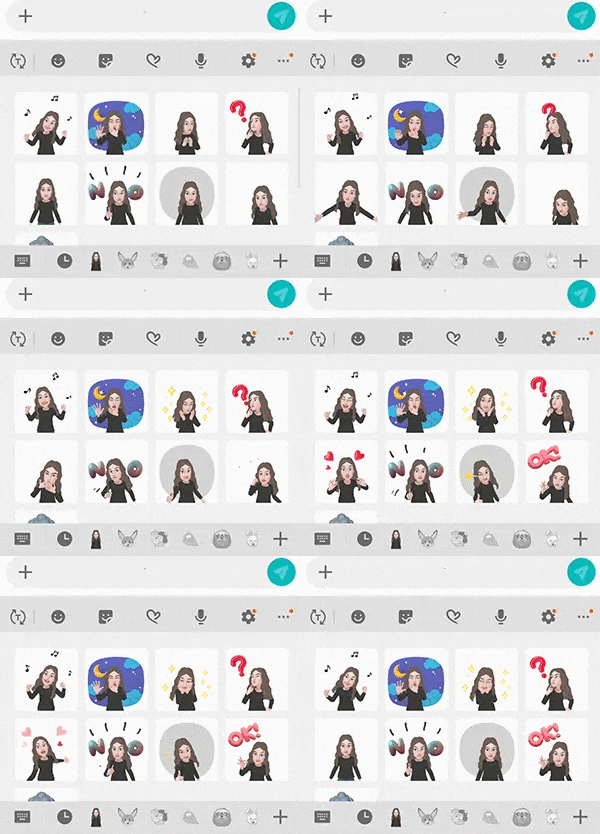
Touch the enter message field and when the on-screen keyboard appears tap “Stickers”. Here you’ll see stickers and gifs of your very own emoji.
Follow the steps below to delete an emoji.
Tap and hold the emoji you want to delete and then tap the red delete icon.
If the above information does not match what your product is showing, you may check the User Manual for your product. If you are unable to solve the problem, please contact us for further assistance.
Thank you for your feedback!
Please answer all questions.
RC01_Static Content : This text is only displayed on the editor page