How to control touch bezel of the screen
Important Note: The information on this page is for Hong Kong products only. Models, sequences or settings will vary depending on location and/or where the product had been purchased. To be redirected to your local support page please click here.
Your Galaxy Watch3’s screen includes the touch bezel, located on the edge of the screen.
Swipe clockwise or anticlockwise on the touch bezel to easily control the Galaxy Watch3’s various functions.
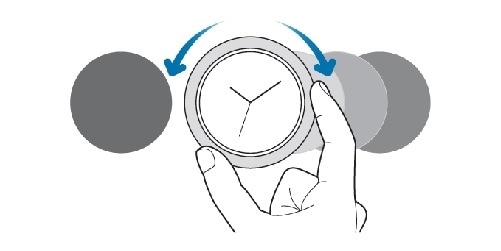
Scrolling through screens
Rotate the bezel to view other screens. On the Watch screen, rotate the bezel anticlockwise to view notifications.
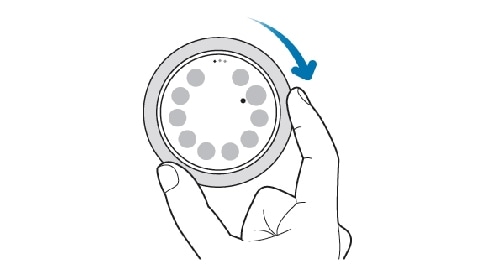
Selecting an item
Rotate the bezel to move from item to item. When you rotate the bezel, the highlight indicator will move in same direction and an item will be highlighted.
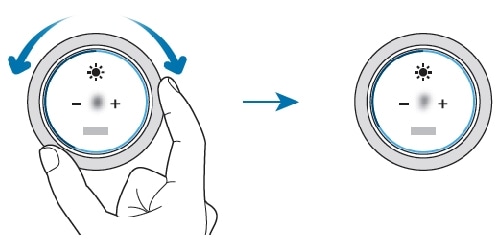
Adjusting the input value
Rotate the bezel to adjust the volume or brightness. When adjusting the brightness, rotate the bezel clockwise to make the screen brighter.
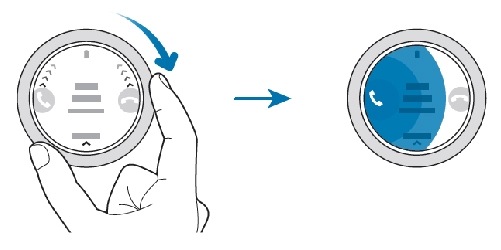
Using the phone or alarm feature
Rotate the bezel clockwise to receive an incoming call or to dismiss an alarm. Rotate the bezel anticlockwise to reject an incoming call or to activate the snooze feature for an alarm.
Note:
Do not use the touch bezel near magnetic fields as they may interfere with the touch bezel’s internal magnets and cause it to malfunction. If the touch bezel does not work, take it to a Samsung Service Center without disassembling the Galaxy Watch3.
If the above information does not match what your product is showing, you may check the User Manual for your product. If you are unable to solve the problem, please contact us for further assistance.
Thank you for your feedback!
Please answer all questions.
RC01_Static Content : This text is only displayed on the editor page