Galaxy S9 - How to Change Screen Mode on Phone when Connect with DeX Pad?
Important Note: The information on this page is for Hong Kong products only. Models, sequences or settings will vary depending on location and/or where the product had been purchased. To be redirected to your local support page please click here.


The covered area is an email address.
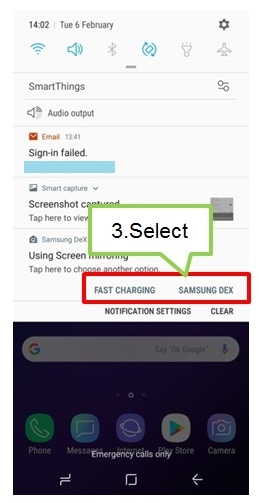
The covered area is an email address.
Screen Images are for reference only. The screenshots are subject to change. Google+, Google, the Google logo, Google Search, Google Maps, Gmail, YouTube, Android, Google Play and Messenger are the trademarks of Google Inc. All other products and services mentioned may belong to their respective trademark owners.
Now you can directly search for useful User Guide on the Samsung Members app preinstalled on Galaxy S9/S9+. Please try now.
Notice:
All functionality, features, specifications and other product information provided in this frequently asked question including, but not limited to, the benefits, design, pricing, components, performance, availability, and capabilities of the product are subject to change without notice or obligation. Samsung reserves the right to make changes to this frequently asked question and the product described herein, at any time, without obligation on Samsung to provide notification of such change.
If the above information does not match what your product is showing, you may check the User Manual for your product. If you are unable to solve the problem, please contact us for further assistance.
Thank you for your feedback!
Please answer all questions.
RC01_Static Content : This text is only displayed on the editor page