Enjoy S Pen Writing Experience with Galaxy S21 Ultra
Important Note: The information on this page is for Hong Kong products only. Models, sequences or settings will vary depending on location and/or where the product had been purchased. To be redirected to your local support page please click here.
The one of the most advanced Galaxy Heritage, S Pen is exclusively offered with Galaxy S21 Ultra to provide more precise and useful writing experiences as if it were a real pen in every moment.
First S Pen for the S series
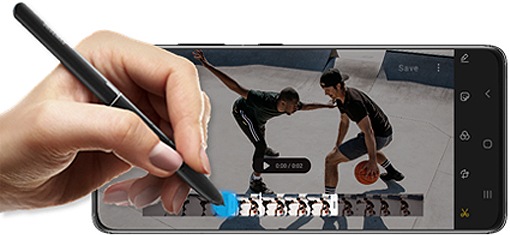
Take advantages of real pen-like writing experience in rate of 120Hz Galaxy S21 Ultra offers. This advanced feature of S Pen lets precise editing of high-resolution videos and photos with S Pen.
Note:
- Do not bend or apply excessive pressure with the S Pen while using it. The S Pen may be damaged, or the nib may be deformed.
- Do not hard press on the screen with the S Pen. The pen nib may be deformed.
- If there is a magnet near the device, some S Pen actions, such as tapping the touchscreen, may not work.
- If the S Pen is not working properly, take it to a Samsung Service Center.
Air command
You can jot down notes, translate text, preview links, and more with S Pen on Galaxy S21 Ultra. Air command is a menu that provides S Pen features and quick access to frequently used apps.
To open the Air command panel, hover the S Pen over the screen and press the S Pen button. Alternatively, hover the S Pen over the screen and tap the Air command icon with the S Pen.
If the Air command icon does not appear after you hover the S Pen over the screen, launch the Settings app, tap Advanced features > S Pen, and then tap the Show floating icon switch to activate it.
Drag upwards or downwards on the Air command panel and select a function or app you want.
Available commands with S Pen


S Pen is sold separately
S Pen is with ultra speed latency and yet sold separately to Galaxy S21 Ultra users. S Pen is not included in in-box items, and a S Pen owned by the user or a purchased S Pen can be used. Depending on your preference, you can buy accessories such as Silicone Cover with S Pen or Smart Clear View Cover with S Pen.
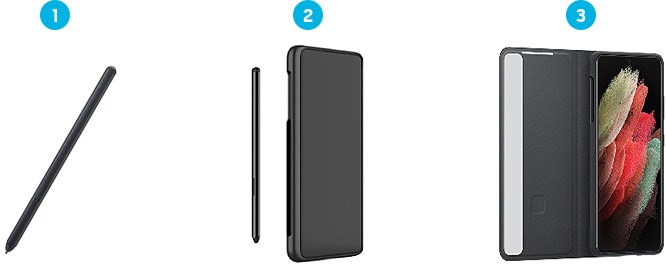
① S Pen only
② Silicone Cover with S Pen
③ Smart Clear View Cover with S Pen
Note:
- Galaxy S20 Ultra is compatible with S Pen in Galaxy Note and Tab series.
- Device screenshots and menu may vary depending on the device model and software version.
If the above information does not match what your product is showing, you may check the User Manual for your product. If you are unable to solve the problem, please contact us for further assistance.
Thank you for your feedback!
Please answer all questions.
RC01_Static Content : This text is only displayed on the editor page