How to troubleshoot your Smart Monitor M80B if the screen is not normal when connecting to a PC
Important Note: The information on this page is for Hong Kong products only. Models, sequences or settings will vary depending on location and/or where the product had been purchased. To be redirected to your local support page please click here.
If the connected device is not recognized as a PC, try changing the device type to PC.
You can change the connected device’s device type from Menu.
Step 1. Press the Home button on the Smart Remote and navigate to Menu > Connected Devices.
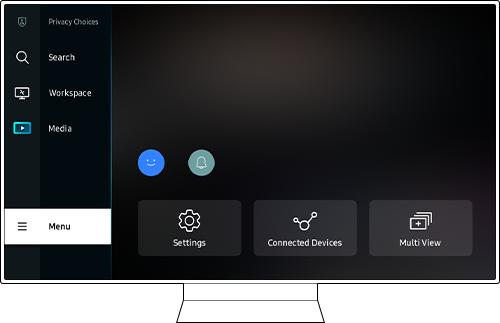
Step 2. Navigate to Connected Devices > Press the down directional button on the Smart Remote.

Step 3. Select Edit.
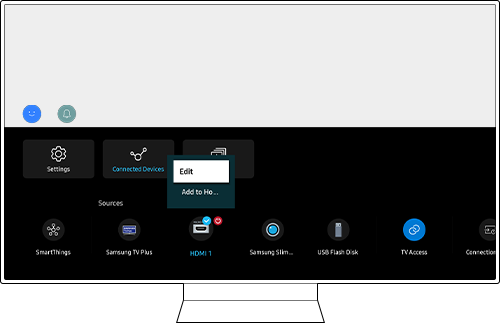
Step 4. From Edit Device Type, select PC.

To go to All settings, press the Home button for 2 seconds > Up button 1 time from the Virtual number pad window > All Settings.


Step 1. Press the Home button for longer than 2 seconds.


Step 2. Select the Up button.


Step 3. Select All Settings.
Find out more about:
'How to troubleshoot your Smart Monitor M80B when connecting a device to the USB-C port'
'How to connect the Smart Monitor M80B dedicated camera'
'How to view the TV's video screen on your Smart Monitor M80B'
'How to troubleshoot when your Smart Monitor M80B remote is not working' with Samsung Support.
Note:
- If you are having trouble with your Samsung Smart Monitor, you should always check to see if there are any software updates available as these may contain a fix for your problem.
- Device screenshots and menus may vary depending on the device model and software version.
If the above information does not match what your product is showing, you may check the User Manual for your product. If you are unable to solve the problem, please contact us for further assistance.
Thank you for your feedback!
Please answer all questions.
RC01_Static Content : This text is only displayed on the editor page