How can I add a credit/debit card to Samsung Wallet?
Important Note: The information on this page is for Hong Kong products only. Models, sequences or settings will vary depending on location and/or where the product had been purchased. To be redirected to your local support page please click here.
If you want to enjoy all the advantages of Samsung Wallet, it is vital that you add your credit and/or debit cards to the application, so that you can make all your payments from your mobile in a convenient, fast and secure way.
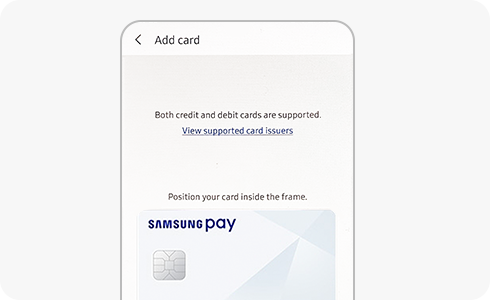
If you want to add a card to Samsung Wallet, follow these steps:
Please note: The details required may vary based on your country and card provider, so simply follow the instructions inside the Samsung Wallet app to add your card info.
Please note: The payment card displayed in Samsung Pay may not match your physical card. In this case, Samsung Pay will use a graphic representation of your card. You can determine your card is accurate by verifying the card network (Visa, MasterCard, or American Express), the card issuer (e.g., Bank of America, Citibank, or U.S. Bank), and the last four digits of your card. Also, you can continue to use your physical payment cards even though you removed them in Samsung Pay. If you want to cancel your card, please contact the card issuer.
If the above information does not match what your product is showing, you may check the User Manual for your product. If you are unable to solve the problem, please contact us for further assistance.
Thank you for your feedback!
Please answer all questions.
RC01_Static Content : This text is only displayed on the editor page